
Topics in this Article
💡 About Personal Documents
Avoid expired and non-valid documents
The module in a nutshell
How to activate the module
How to give permission
✍️ How to use Personal Documents
How to create a Document Type
Advanced Options
How to submit a personal document
How to find My Documents
🗂️ How to navigate the Admin Overview
💡About Personal Documents
Avoid expired and non-valid documents
Ensure your staff have access to their licenses, certifications and other important documents, send automatic renewal requests, and minimise the risks and costs that missing or expired documents may result in.
You may find the feature useful for:
- Licenses
- Certifications
- Work permits
- Contracts
- Staff IDs
The module in a nutshell
- Users with permission to manage Personal Documents can create a "Document Type", for example "Drivers License".
- This document together with an optional expiry date is either requested from selected users, or uploaded on behalf of them.
- Admins can schedule reminders to renew documents, to always keep them up to date.
- Individual users can access their own personal documents in "My Documents"
- Managers can see statuses across document types and users in the Admin View.
How to activate the module
- As a site admin, you can activate the module Personal Documents
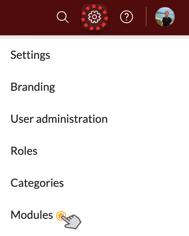
- Click the cogwheel in the top right corner of the web application followed by "modules" - then activate it.

How to give permission
Once the module is activated, the permission "Can manage Personal Documents" can be assigned selected roles.

✍️ How to use Personal Documents
How to create a Document Type
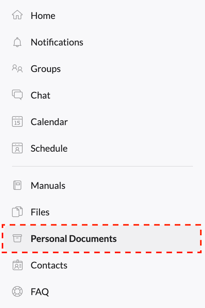
Users with the permission "Can manage Personal Documents" can access the admin view from the left hand menu on the desktop app.
To create a new Document Type, click "Create Document Type"

On the screen that appears you will be given a few options:
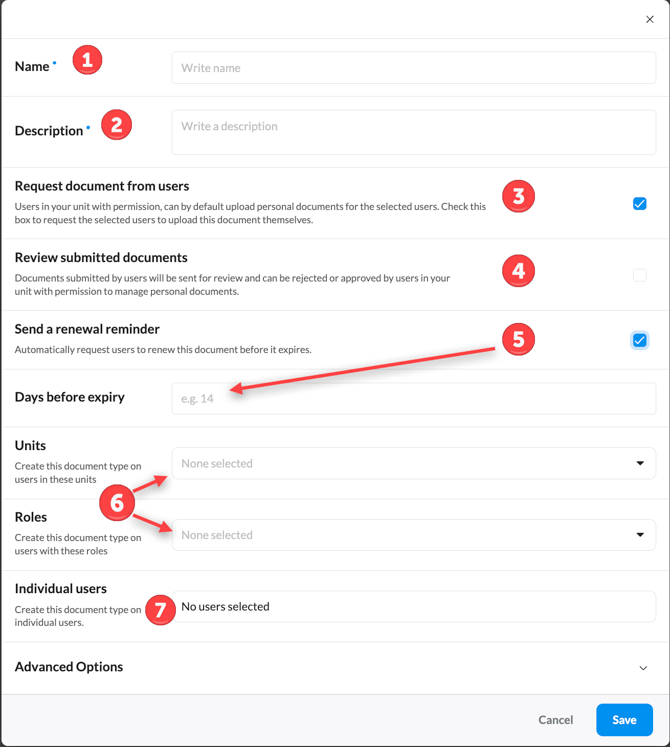
- Name:
Give the Document Type a name - for example "First Aid Certificate" or "Drivers license". - Description:
The description field can be used to explain the specifics of the Document Type and what users are expected to submit. - Request document from users:
Requesting a document from users will create a task for the selected users, requiring them to submit this document.
If you instead want to upload the documents on behalf of the users, uncheck this box and upload the personal documents yourself. - Review user submissions:
When a user submits a document, you and other users in your unit with the permission "Can manage personal documents" will be notified, and required to approve or reject the document. If you reject it, users will be asked to asked to send the document again. - Send renewal reminder
When submitting and reviewing documents, an expiry date can be set to the document. Sending a renewal reminder will automatically create a task for users, requiring them to resubmit the document before the expiry date is reached. - Unit & Role selection
Choose which users this Document Type should be created on, using units and roles.
The document type will be created also on users created in the future if their unit and role match the sharing settings. - Individual user selection
You can create the document type on individual users, either instad of or in addition to the unit and role selection.
Advanced Options
(only relevant if you create the document type on users in sub units)
To illustrate what the advanced settings are used for let's take an example. In the graphic below you can see a unit structure where Central Administration is the top unit, North Region is below that, and under the North Region there are two freight terminals. I belong to "Central Administration", and choose to request drivers licenses from drivers in both freight terminals.
By default, only those users with the permission "Can manage personal documents" who are located in my own unit (Central Administration) can see all the drivers licenses submitted. (The drivers can access their own drivers license and other personal documents under My Documents)
The setting "Managers can see documents in their own unit" allows users with the permission "Can manage personal documents" to view personal documents linked to this document type belonging to users in their own unit. In the example used, if there are users in the Freight Terminals with permission to manage personal documents, enabling this option would give them access to the drivers licenses of drivers in their own terminal.
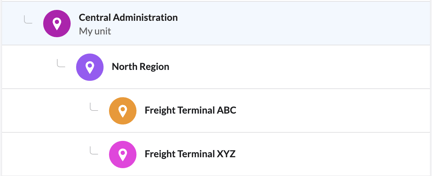
Using the same example as above, the option "Managers can see documents in their own unit and sub units", would allow users with the permission "Can manage personal documents" located in the "North Region" to view the drivers licenses of drivers in both terminals.
To summarise, these settings allow you to give local managers permission to view documents of this type belonging to users in their own unit or area.
How to submit personal documents
You have created a Document Type, given it a name and a description, defined what users the document is relevant for, and chosen whether you or the users are responsible for submitting it.
If you requested the document from users
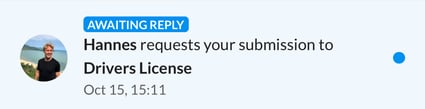
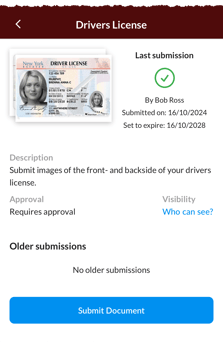
They received a push notification and a task to submit the document.
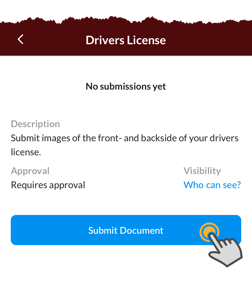
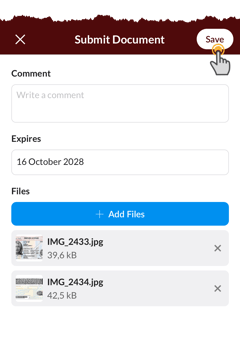
When they click it, they will be guided through the process of submitting the document.
If you did not request the users to submit document
It is up to you or someone else in your unit with permission to manage personal documents to upload the documents for the users selected.
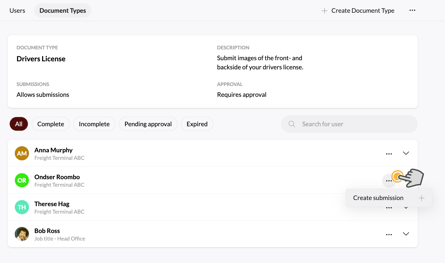
Go to the "Personal Documents" module in the left hand menu on the web app, and click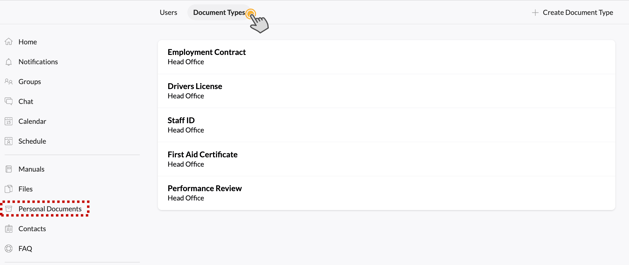
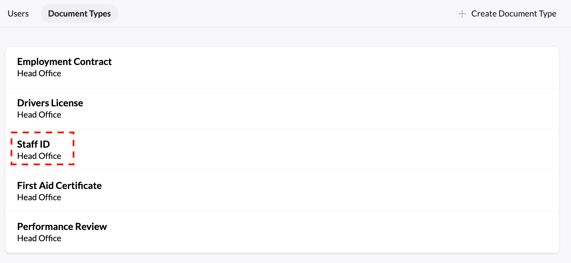
(The unit below shows from where the document type was created. Users in this unit with permission to manage personal documents can upload documents on users behalf)
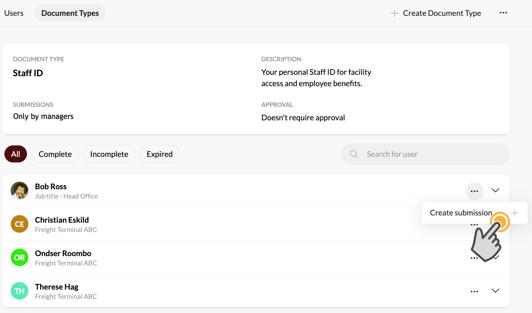
Attach a file, and optionally set an expiry date. Comments are visible to the user and managers.
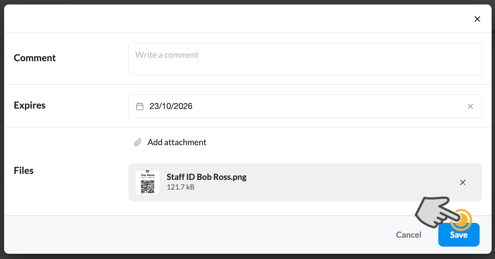
After submitting the document, it will be available in the Admin Overview and for the individual user under My Documents
How to find My Documents
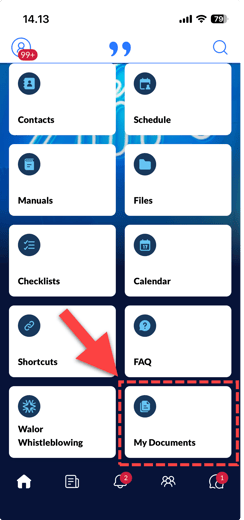
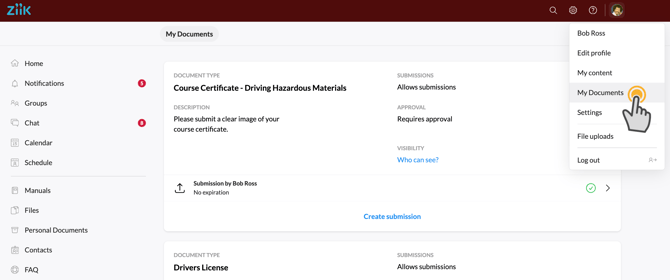
Users with personal documents either submitted by themselves or their managers, will see these in "My Documents" on both the web app and the mobile app.
🗂️ How to navigate the Admin Overview
Users
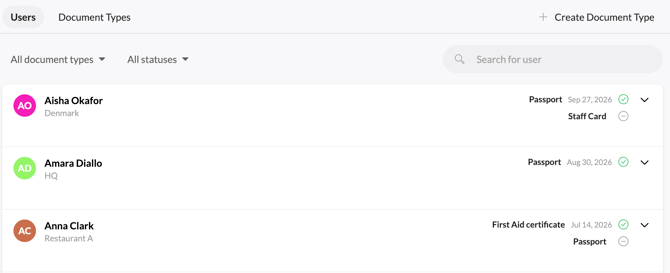
When you enter the module from the left hand menu on the web app, you see an overview of all users with documents that you have permission to view.
Unfold the view on a user to see status on all their documents.
Document Types
Here you see all Document Types that you have admin access to.
You will see Document Types that:
- You or another user from your own unit has created. These you can edit.
- A user from a parent unit has created and given you permission to view. These you can not edit.
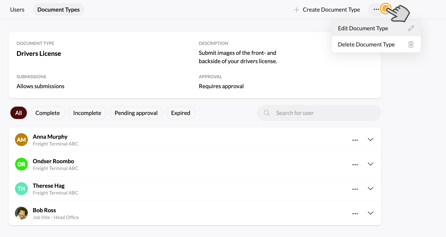
Click a document type to view details, users it is created on, and submissions made to it. If the document type was created from your unit, you can edit/delete the document type and make submissions on users here.
Notifications
Users are notified:
- When they are requested to submit a document
- When their submission was accepted
- When their submission was rejected
- When they are requested to renew a document
- When an admin submitted a document on their behalf
Admins are notified
- When a new submission is made by a user