At a glance
|
Notification Center |
Tasks |
|
|---|---|---|
|
What's in it |
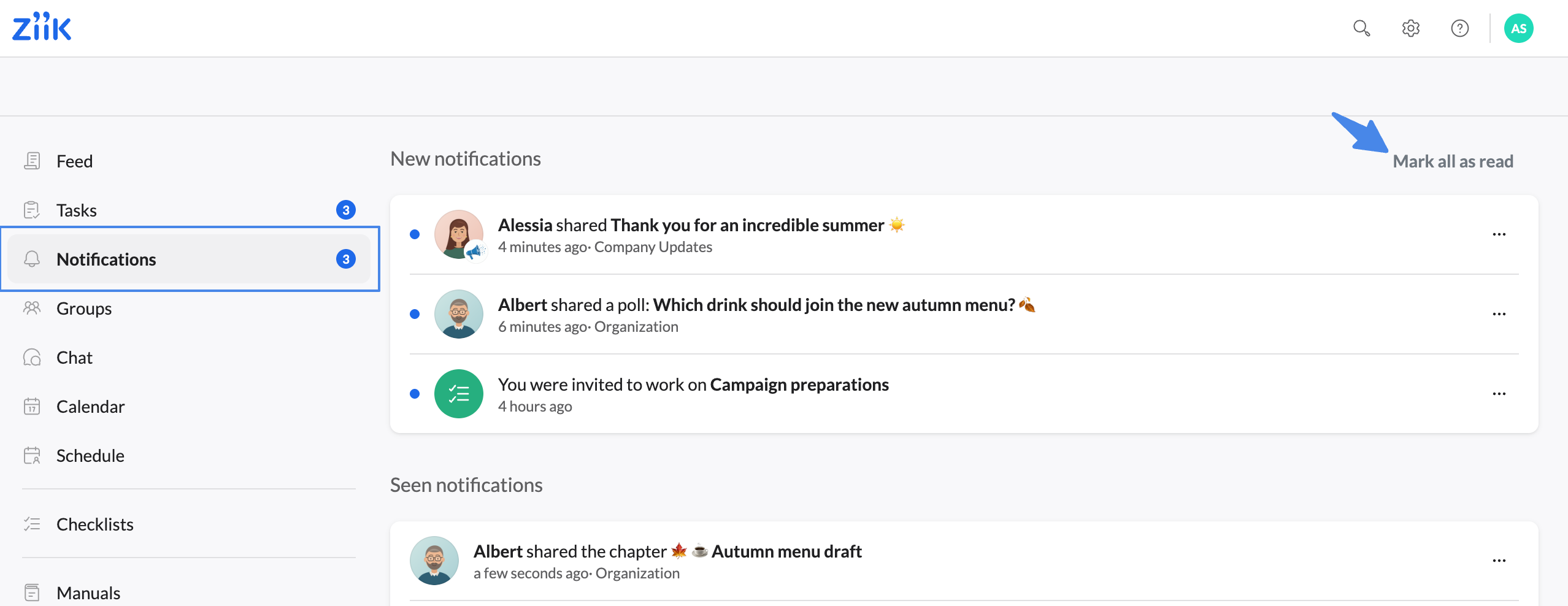
Updates: new posts, comments, mentions, shares, checklist invites |
Requests that need an action from you |
|
Counter |
Unread notifications |
Open tasks |
|
Order |
Newest first |
By due date, then newest first |
|
How it's cleared |
View related content, mark single notification as read, or "Mark all as read" |
Complete the action. Tasks can't be dismissed |
What becomes a task?
A task is created when someone asks you to do something specific in Ziik. It's marked done when you've completed the task.
|
Where it comes from |
Your task |
It's done when |
|---|---|---|
|
Post with read confirmation |
Read post |
You confirm you've read it |
|
Event with read confirmation |
Read event |
You confirm, or the event starts |
|
Event with participation request |
Reply to invitation |
You accept or decline, or the event starts |
|
Mandatory poll |
Vote in poll |
You vote |
|
Manual chapter(s) with read confirmation |
Read chapter, or read {count} chapters in a manual |
You confirm every requested chapter |
|
Personal document request |
Submit document |
You submit it |
|
Personal document due for renewal |
Renew your document |
You submit a new version |
|
Personal document expired |
Renew expired document |
You submit a new version |
|
Personal document rejected |
Resubmit rejected document |
You submit it again |
If you manage Personal Documents, you also get tasks to review submissions, and to renew documents that expired without a request. These are done when any admin accepts or rejects the submission, or a new one is made.
How Tasks work
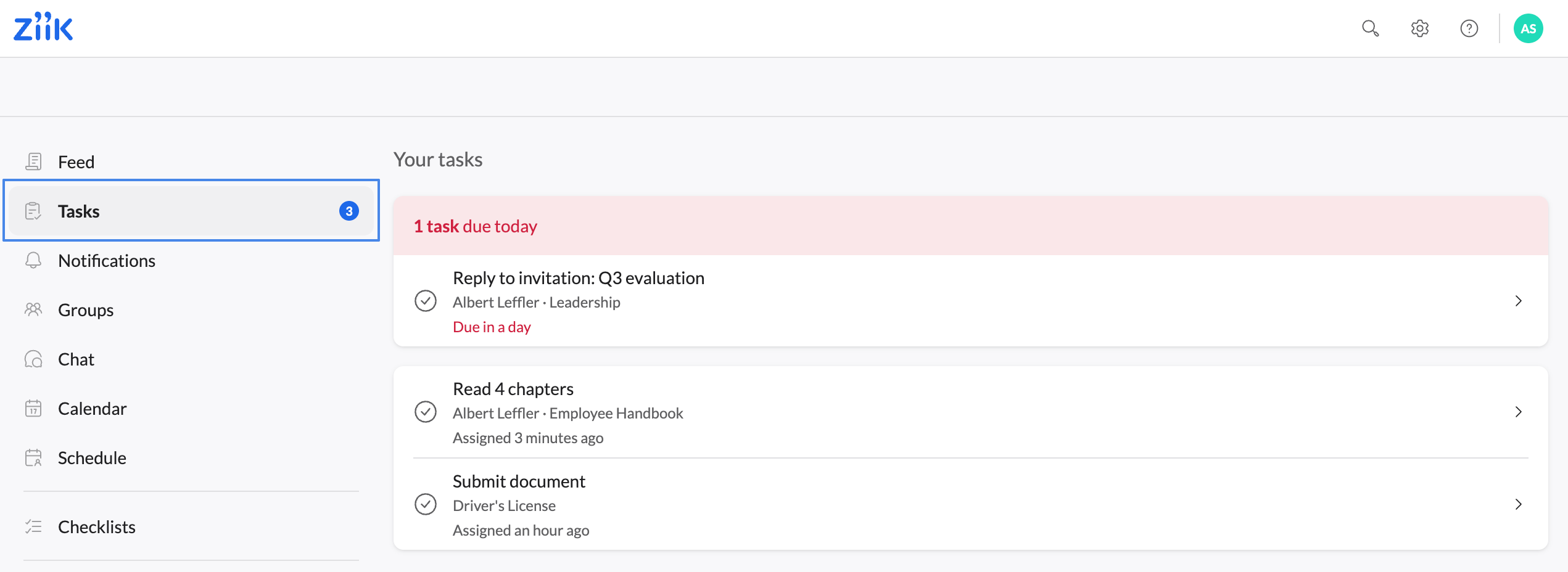
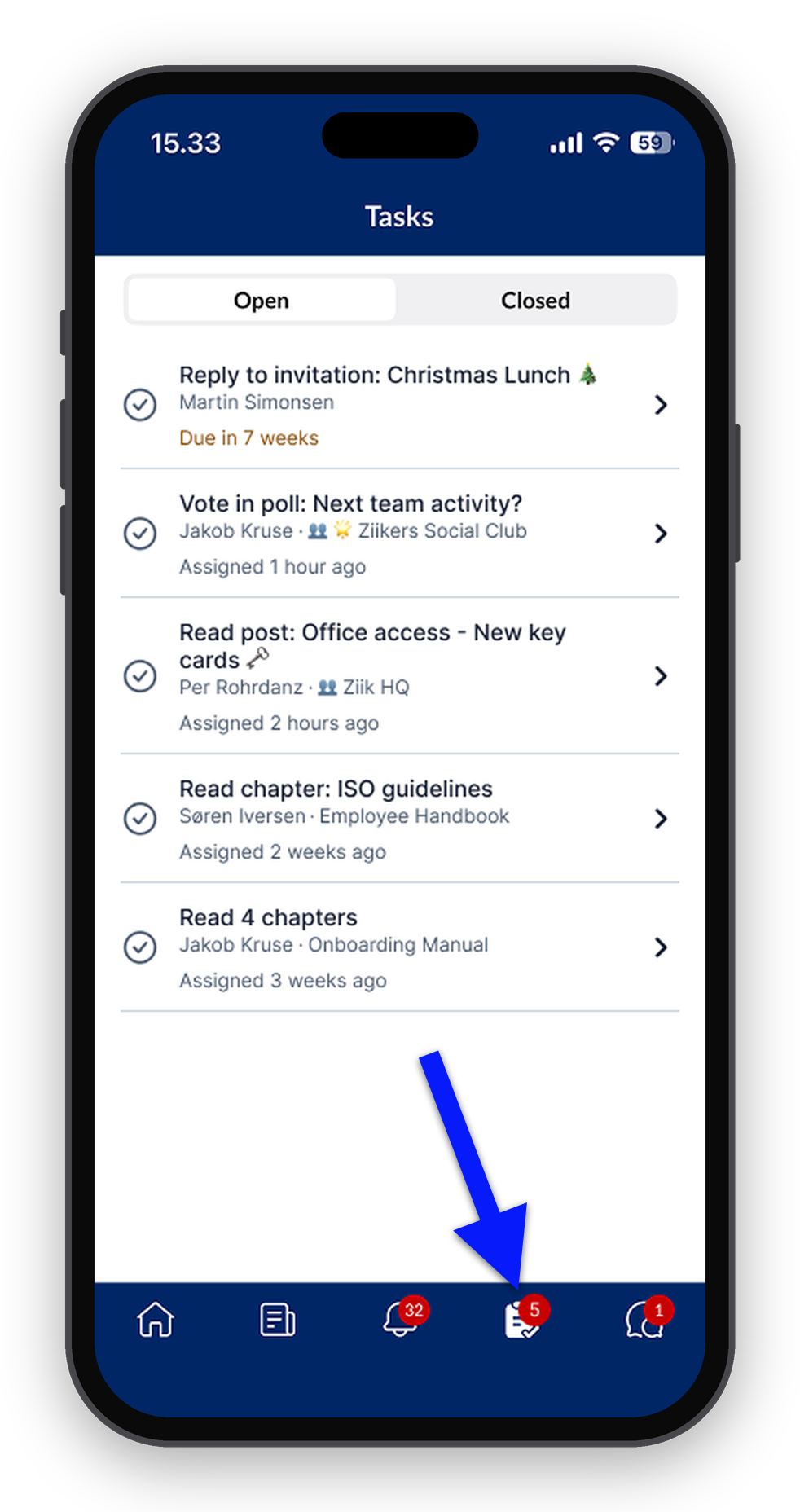
- Find them under Tasks in the menu on web and in the app. The counter shows how many are open.
- Order: tasks with a due date come first, overdue on top. Tasks without a due date follow, newest first.
- Due dates: event invitations are due when the event starts. Renewals are due when the current document expires.
- Complete a task by tapping it. It takes you to the post, event, poll, chapter or document, where you complete the action. The task then leaves your list.
- No shortcuts: tasks can't be marked as read or dismissed. The only way to clear one is to do it.
- Expired tasks: if an event starts before you've replied, the task closes on its own.
- Reminders: if the sender reminds you, the task moves back to the top of your list and you get a push notification. You won't get a duplicate task.
How the Notification Center works
The Notification Center only holds updates, so everything in it can be cleared.
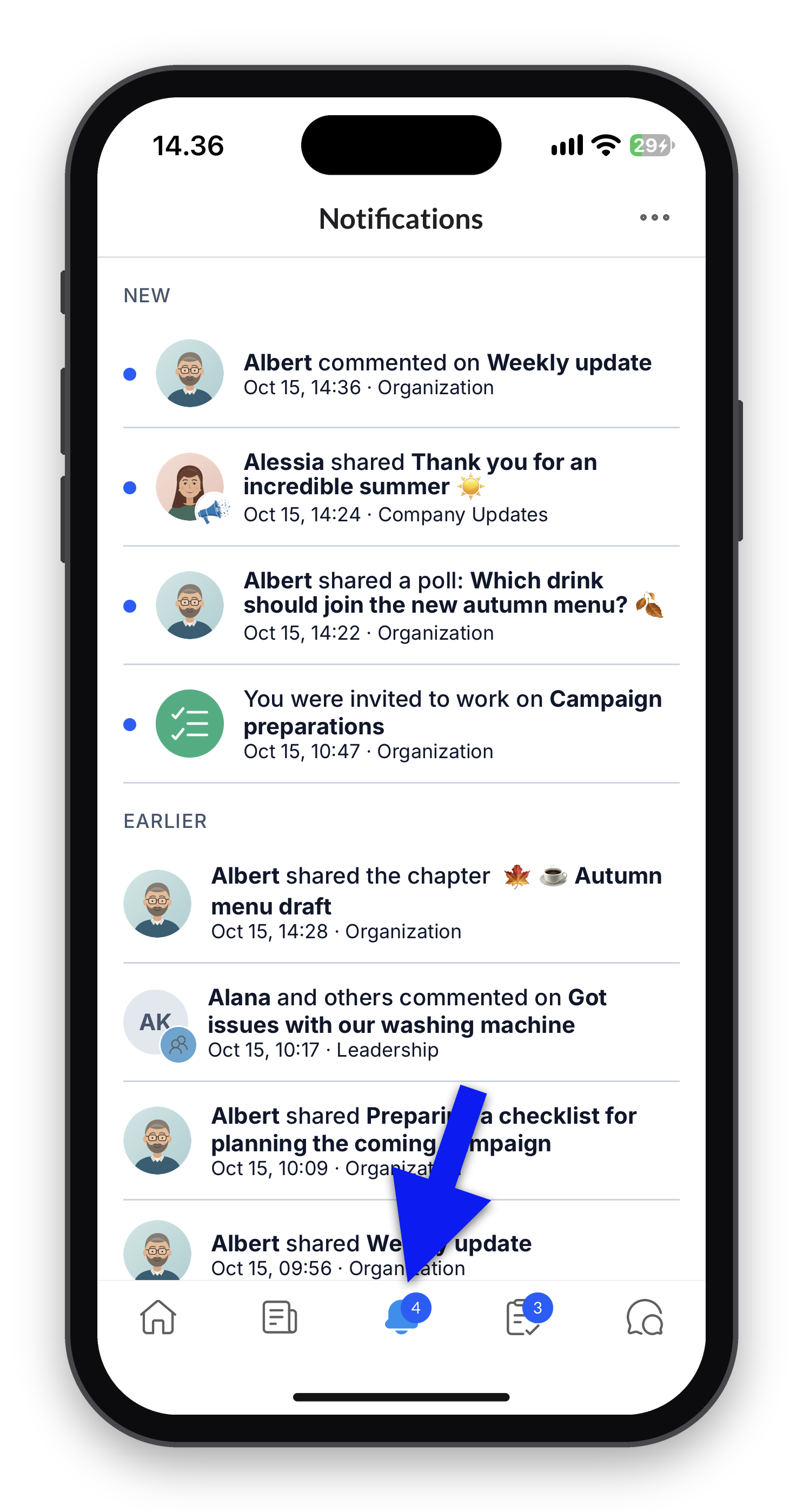
- Mark as read: swipe a notification (app), click mark as read (web), or open it.
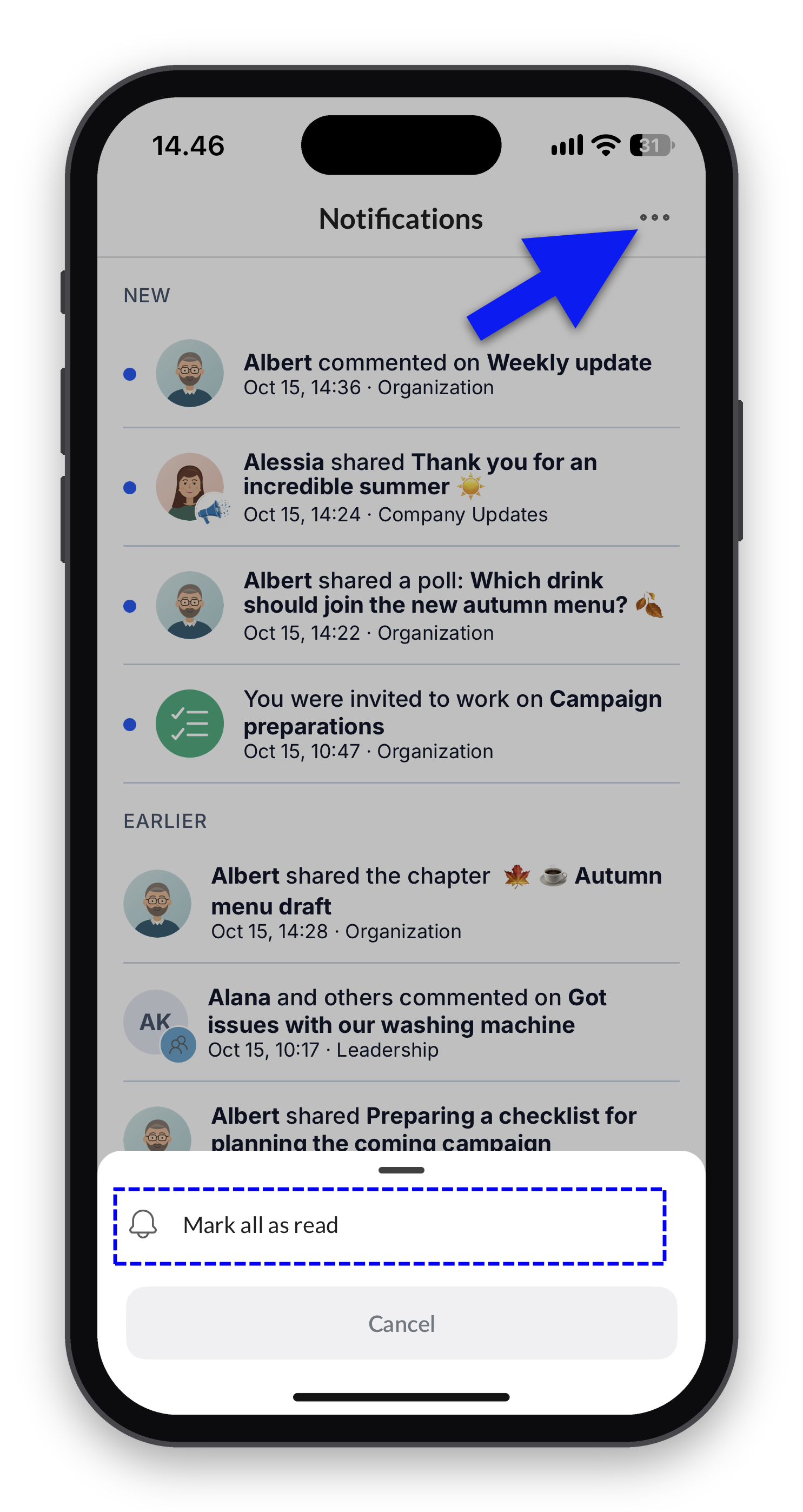
- Mark all as read clears the whole list. Nothing is left behind.